
The PYRO GROUP logo
PyroGroup Yard App
Staff user manual
220B SH16, Whenuapai
As of 24 September 2026
Short book for yard staff. Gate tablet and phone. Not the office admin book.
1. What this app is
PyroGroup Yard App. Gate tablet and your phone for Whenuapai — 220B SH16.
The gate screen stays black with yellow headings. That is the PYRO GROUP look, not a legal company name.
PYROGROUP is the app name. Not a legal company. Five companies share this yard.
IPSL is Gate, then Batch, then Deploy. That work is Deployment — never destruction. Photograph the DG certificate and the packing slip. Opening a gate assigns the next free GateN among live yard gates. Remove takes a gate off the working list and does not keep that number reserved. Receive goes to Storage bin. Deploy does not need a document upload. Count inflators and load hogs (each hog 45 kg or less) when a batch moves to Deployment.
Yard phone +64 9 416 8001.
2. Kiosk home
Tablet home is Site sign-in.
Crew, Visitor, New Crew. Visitor QR sits under the address.
Crew — your name, then PIN.
One PIN per person on this tablet for the Auckland day. After you have opened once, tap your name again and you are in. Sign out ends it. A different person still types their PIN. Tomorrow needs the PIN again.
Visitor — two chips: Return visitor and New visitor. Return visitor opens first. Only that form shows.
Return visitors pick their name. No hazard ticks and no signature.
New visitors tick four short hazards first, then name, host, reason, and a signature.
Unpaid on site is the Visitor chip under CURRENT STATUS, after your PIN. Not a chip on the public Visitor gate.
New Crew — first-time induction. Start induction, then page 1/13. Details and signature come after the pages.
I'm leaving — visitors pick their name and leave. Crew clock out with name and PIN.
Public Site sign-in always shows I'm leaving. Visitors pick their name from people visiting. Return visitor, New visitor, and escorted visitors never see who is on site. New Crew does not show who is on site. A staff PIN session still sees who is on site, including the unpaid Visitor chip. Pick your name is at the top. I'm leaving is at the bottom.
On Visitor, I'm leaving sits under the chips, so you can leave without scrolling past New visitor. Who is on site stays off Return visitor, New visitor, and escorted visitors.
Hide I'm leaving only on the clocked-in staff menu. Clocked-in staff use the public sign-in screen to sign a visitor out. Who is on site stays on the staff PIN session, including the unpaid Visitor chip.
Site hazard register — real hazards only. Photos optional. Do not log a practice one.
3. Crew clock
Crew → your name → four-digit PIN, then Open. The PIN does not send itself. If this tablet already has your PIN for today, your name opens straight in.
CURRENT STATUS is the row under your name. Tap PEL, PCF, CWL, or IPSL to sign in on that company. Notes on sign-in are optional.
Offsite means paid and off the yard. Visitor means unpaid and on site. Offsite needs a company. Visitor does not sit with Offsite.
While you are signed in, Sign out is the large button. Sign in is not offered again until you have signed out. No Break tab.
Switch company on CURRENT STATUS without signing out. Hours up to that minute stay on the company you left. Notes are required on that switch.
No Collect airbag on this screen — that is an IPSL Deployment job after you are on shift.
4. Clock out then clock in again later
Clock out ends those paid hours.
Clock in later the same day starts a new set of hours.
The gap in the middle is unpaid. It does not count.
Example: 8:00–12:00, then 13:00–16:30. Lunch is not paid hours.
Two companies today? Clock out, pick the company, then clock in again. Do not split one clock-in across companies.
5. Already on site / late start
The gate does not have an Already on site button.
Signed out and today's times are wrong? Fix today's hours — under More, after Sign out. Edit those hours. Same row, no extra hours.
Two stretches today? A picker asks which one.
6. Induction
Crew and casuals finish site induction before Sign in. Once marked inducted, you skip it.
The brief opens on Start induction. The line reads page 1/13, then Next through page 13/13.
Escorted visitors are the light path: four short hazard ticks first, then name, host, reason, and a signature. Sign in stays blocked until they sign. Staff escort them. No PIN.
Contractors, storage customers and official inspectors do the full induction. That visit does not also show the hazard ticks.
New Crew is the same full induction. No hazard ticks on that visit. People are added one at a time after the pages.
7. Safety checks / thermal pings
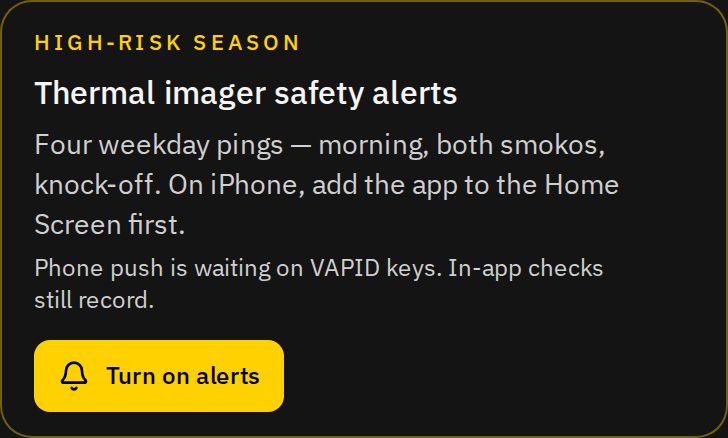
High-risk season. Monday–Friday pushes: 08:10, 10:20, 13:20, 16:20 Auckland.
The yard shows one Safety procedure button. Split control: yellow safety mark on the left, the words Safety procedure, and the clock such as 10:20 on the right. It does not use break names. Tap it.
The first person on site gets the sheet. Everyone else sees Safety check in progress and Got it.
Only the current check shows. A missed check clears when the next time is current. Got it or Complete clears the ping so it does not stay up.
Only people clocked in and on site at send time get the ping — not every phone on the list.
The sheet stays until you tick both boxes: Confirming message has been read, and Safety check complete.
Pick Blue / Yellow / Red. Yellow and Red need an Issue. Red also needs a Fix. Blue notes are optional.
First person who ticks both boxes closes it for everyone on that send. Later people cannot do it again.
Records logs that name, colour, issue, fix, and time.
Safety procedure
10:20
Safety procedure 1020
SAFETY CHECK - ELEVATED RISK PROFILE
This is a reminder to make sure that you have used the Thermal Imager to check for hotspots around your work area.
- Blue — All clear, nothing to fix
- Yellow — Watch / minor issue
- Red — Hazard / needs action
☐ Confirming message has been read
☐ Safety check complete
8. Tap a safety alert
Tap the phone alert and the Yard App opens on the safety sheet.
If you need to sign in again, use your Crew name and PIN — not office login.
If the sheet is not there, open the Yard App while you are clocked in. The pending check should be waiting.
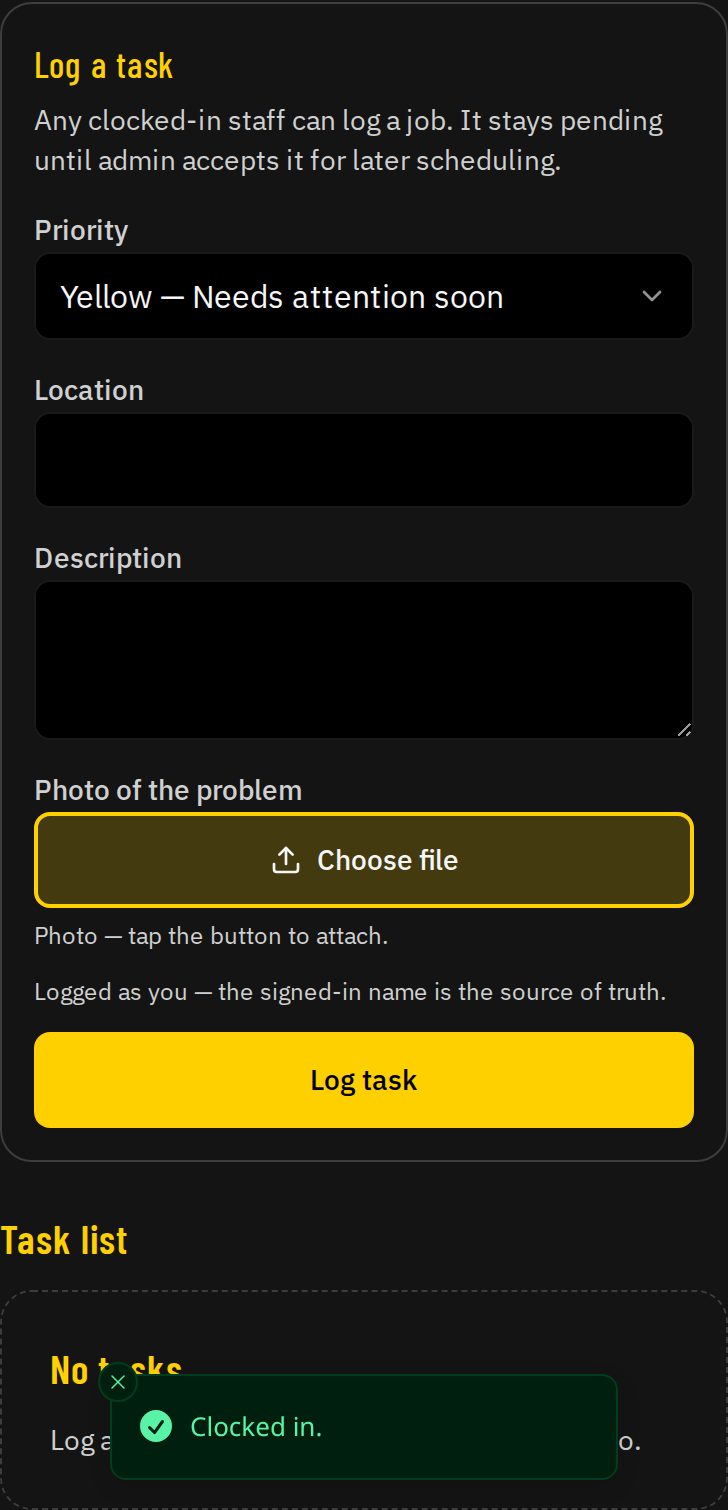
9. Task log
Anyone on the clock can work a task until it is closed.
A new task pings phones that already have alerts on, for people On Duty or On site. It does not ping visitors, people who have signed out, or when a task is accepted or closed.
Tap the photo to open it. Close when you are done.
Closed tasks stay on the kiosk until Monday 00:00 Auckland, then Records only.
Open tasks stay on the kiosk across week end.
10. Put the app on your phone
The Home Screen name is PyroGroup Yard App. Black background, yellow PYRO GROUP logo.
iPhone: Safari → Share → Add to Home Screen. Confirm the name, then Add.
Android: Chrome menu → Install app / Add to Home screen.
Old shortcut still saying Site sign-in or showing a grey/orange icon? Delete it and add it again.
Then Turn on alerts. Allow notifications. Your name and PIN work — you do not need office login for this.
11. Short office notes for staff
Leave: request Annual or Sick from the clock. Watch the status on that same screen. Not payroll until someone approves it.
Office looks at Time → Leave. Remaining days come from Xero when pulled — nobody invents a balance here.
Forgot your PIN, or the tablet is stuck? Ask the office. An approved person can reset a PIN. Do not use someone else's.
Print this manual from Settings → Staff manual, or open Staff manual on the gate.
This page is for the floor. It is not the admin book — no Xero connect steps, no induction PDF upload, no company profile edits.